 Dodatki
Dobrodošli pri dodatkih za Thunderbird.
Dodajte funkcije in sloge, kot vam za Thunderbird najbolj odgovarja.
Zapri
QuickArchiver 2.7.5
- Otto Berger
Support your Getting Things Done (GTD) workflow: QuickArchiver remembers destination folders as you move emails. File matching messages with one click or a keyboard shortcut – for a tidy inbox and less time spent sorting mail.
O tem dodatku
A tidy inbox, with fewer clicks
Newsletters, invoices, customer enquiries, or messages from your club: many emails belong in the same folders time after time. QuickArchiver remembers those destinations so you can stop hunting for the right folder.
QuickArchiver supports an email workflow based on the Getting Things Done (GTD) method: once you have decided what to do with a message, quick filing helps you keep your inbox clear.
You decide when to move a message. QuickArchiver finds the matching destination – one click or a keyboard shortcut files it away.
Move it once, save time next time
Move an email to its destination folder as usual. If no matching rule exists, QuickArchiver automatically creates one from the sender’s address and remembers the folder.
When another matching message arrives, click the QuickArchiver button or press Alt+A. The message goes straight to the saved destination. You can also select several messages and press Alt+A to move every message that has a matching rule.
Your rules grow as you tidy your inbox. There is no need to set up a filter for every sender in advance.
See where a message will go
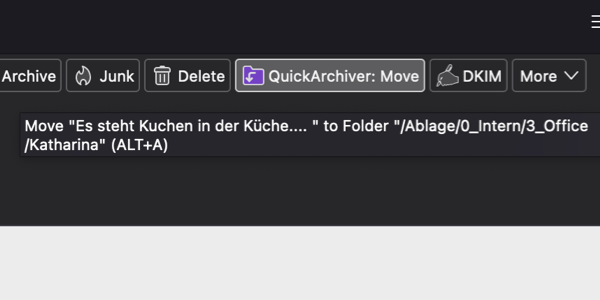
The QuickArchiver button’s tooltip shows the destination folder and your currently configured keyboard shortcut.
In Thunderbird’s table view, you can also enable the QuickArchiver Folder column: right-click a column heading and select it. Destinations then appear directly in the message list. If a message is already in the right place, you will see ✓ Current Folder. This column is not available in card view.
Rules that fit the way you file mail
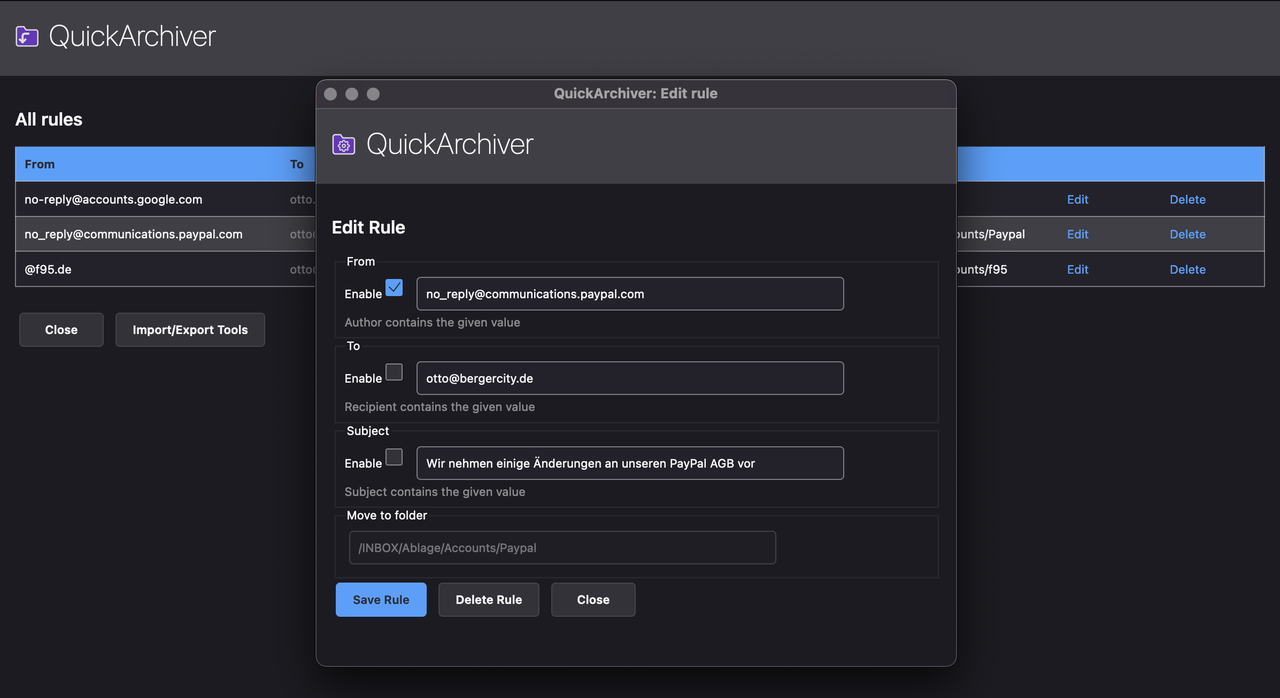
Adjust any rule to match the sender, recipient, or subject, and optionally restrict it to a particular source account. All enabled conditions must match. Recipient rules check the first recipient address provided by Thunderbird.
Text matching ignores upper and lower case. Your search text can occur anywhere in the field. You can also use * as a wildcard:
Choose the destination folder using a searchable picker. If you have several accounts, filter the folder list by account.
Keep your rules under control
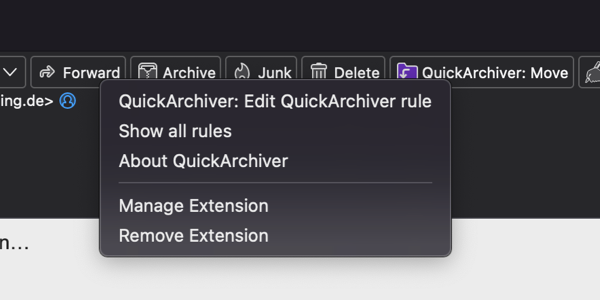
Right-click the QuickArchiver button to open its menu. From there, edit the current rule, select Show all rules, or open the built-in help. The rules list lets you review, change, and delete saved rules.
To review each new rule straight away, enable Open rule popup for new rules in the options. The editor will open after a rule is created automatically. This option also allows special destinations such as Trash; otherwise, Inbox and Trash are excluded from automatic rule creation.
Back up and restore your rules
Use the import/export tools below the rules list to save your rules to a file and restore them later. Importing replaces all existing rules. Export a backup first if you want to keep them.
Rules are stored locally in Thunderbird. Back them up before uninstalling the extension if you want to use them again later.
Languages and further information
QuickArchiver is available in English, German, and French and supports Thunderbird 128 through 156.
Newsletters, invoices, customer enquiries, or messages from your club: many emails belong in the same folders time after time. QuickArchiver remembers those destinations so you can stop hunting for the right folder.
QuickArchiver supports an email workflow based on the Getting Things Done (GTD) method: once you have decided what to do with a message, quick filing helps you keep your inbox clear.
You decide when to move a message. QuickArchiver finds the matching destination – one click or a keyboard shortcut files it away.
Move it once, save time next time
Move an email to its destination folder as usual. If no matching rule exists, QuickArchiver automatically creates one from the sender’s address and remembers the folder.
When another matching message arrives, click the QuickArchiver button or press Alt+A. The message goes straight to the saved destination. You can also select several messages and press Alt+A to move every message that has a matching rule.
Your rules grow as you tidy your inbox. There is no need to set up a filter for every sender in advance.
See where a message will go
The QuickArchiver button’s tooltip shows the destination folder and your currently configured keyboard shortcut.
In Thunderbird’s table view, you can also enable the QuickArchiver Folder column: right-click a column heading and select it. Destinations then appear directly in the message list. If a message is already in the right place, you will see ✓ Current Folder. This column is not available in card view.
Rules that fit the way you file mail
Adjust any rule to match the sender, recipient, or subject, and optionally restrict it to a particular source account. All enabled conditions must match. Recipient rules check the first recipient address provided by Thunderbird.
Text matching ignores upper and lower case. Your search text can occur anywhere in the field. You can also use * as a wildcard:
@*example.com, for example, matches both info@newsletter.example.com and support@example.com.Choose the destination folder using a searchable picker. If you have several accounts, filter the folder list by account.
Keep your rules under control
Right-click the QuickArchiver button to open its menu. From there, edit the current rule, select Show all rules, or open the built-in help. The rules list lets you review, change, and delete saved rules.
To review each new rule straight away, enable Open rule popup for new rules in the options. The editor will open after a rule is created automatically. This option also allows special destinations such as Trash; otherwise, Inbox and Trash are excluded from automatic rule creation.
Back up and restore your rules
Use the import/export tools below the rules list to save your rules to a file and restore them later. Importing replaces all existing rules. Export a backup first if you want to keep them.
Rules are stored locally in Thunderbird. Back them up before uninstalling the extension if you want to use them again later.
Languages and further information
QuickArchiver is available in English, German, and French and supports Thunderbird 128 through 156.
